
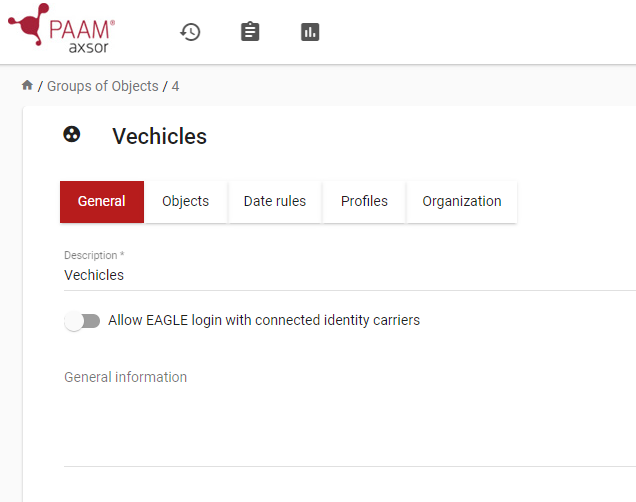
1. Go to Administrate
and click on Group of Objects .
2. Click on + to add a new group.
3. In the general tab add the name of the new group and save.
Once the information is saved it is possible to connect objects, date rules, profiles or change organization beloning.
NB! If you toggle Reservation Required to yes for the object group, all objects connected to this group must be reserved before an Individual gets access to it.
1. If you have more than one EAGLE Assembly you can filter so that you only see the objects in the EAGLE you want.
2. By clicking on show search settings you can change the search parameters. Beyond objects, you can also search for doors and assemblies.
3. Search for the objects that you want to connect to the group and select.
1. Search and connect date rules to determine when the group will be active.
1. Search and connect profiles. Profiles are the bridges between individuals and objects. Connections could also be made in the profile connections view.
You can create new profiles by clicking +.
1. Choose what organization the group belongs to.
You have keys for both vehicles, storage and property, but most users shouldn’t have access to the majority of the keys.
The Group of Individuals Drivers should only have access to vehicles. By creating a Group of objects called Vehicles, containing all of the vans and trucks, you can easily and quickly give and take away access by connecting the groups to each other.